
How To: Create a New Survey
This article explains how to create a new survey using the mEMA website. While the interface may look slightly different between mEMA 9 and mEMA 10, the steps and concepts below apply to both platforms.
Before You Start
- Surveys are created on the mEMA website, not directly in the mobile app
- You must have permission to create and edit surveys
- Participants must download updates in the mEMA app to receive new or updated surveys
Opening the Survey Builder
- Log in to the mEMA website.
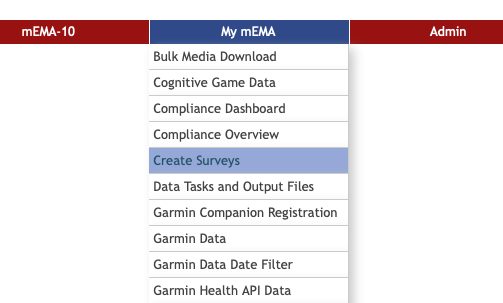
- From the My mEMA menu, select Create Surveys.
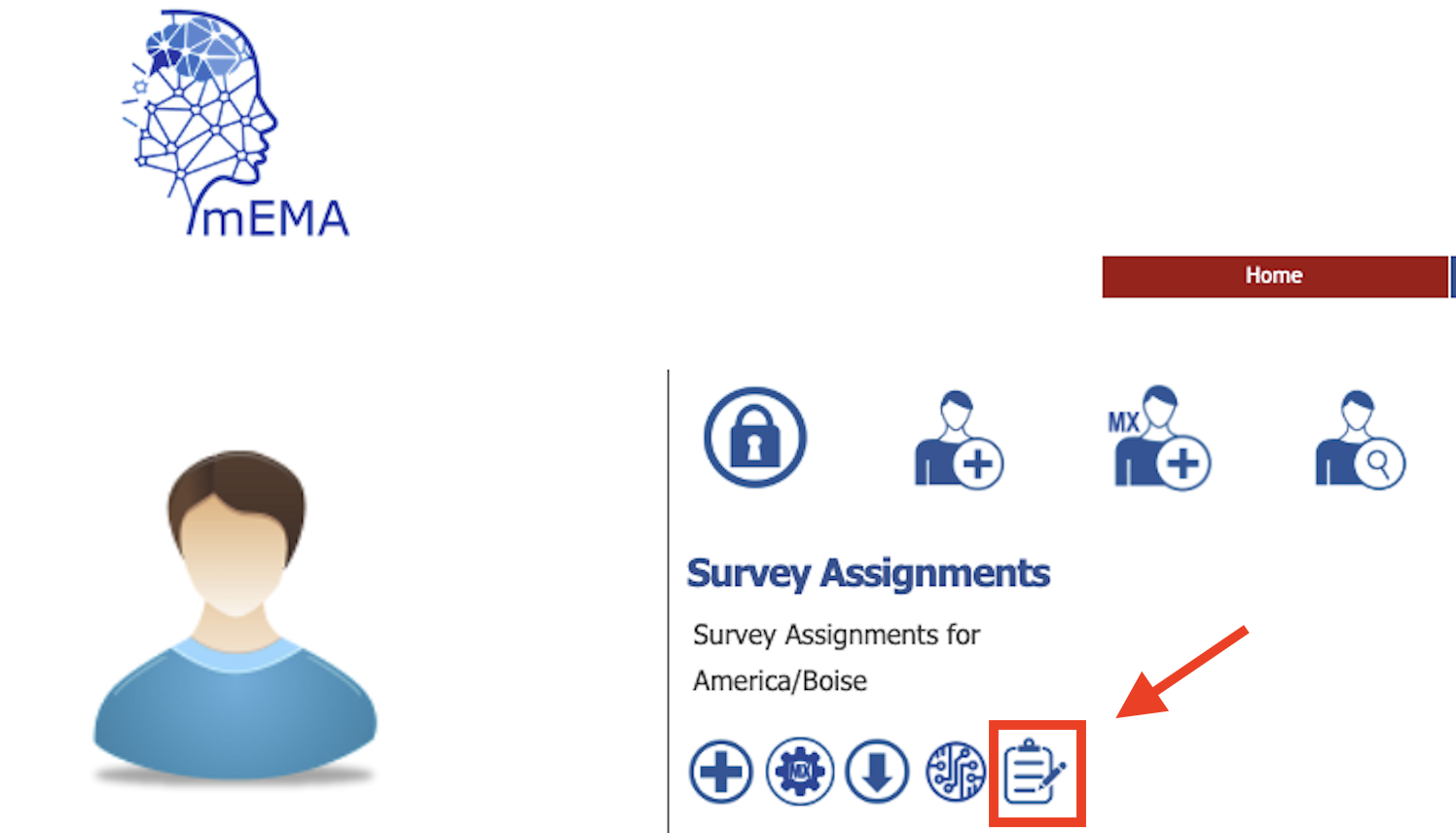
- Alternatively, you may also select the Create Survey icon in the Survey Assignments section:
Create or Select a Survey
On the survey creation screen, you can:
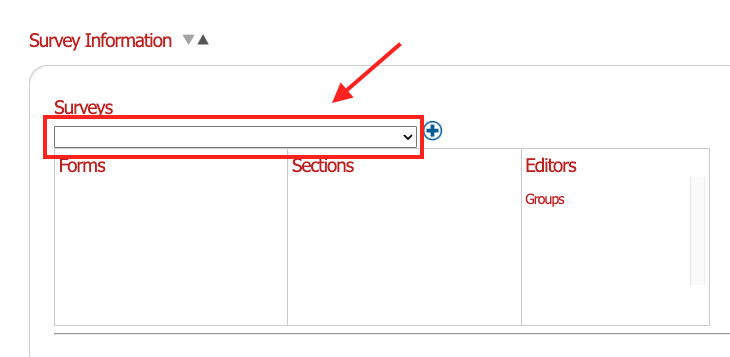
- Select an existing survey from the dropdown menu, or
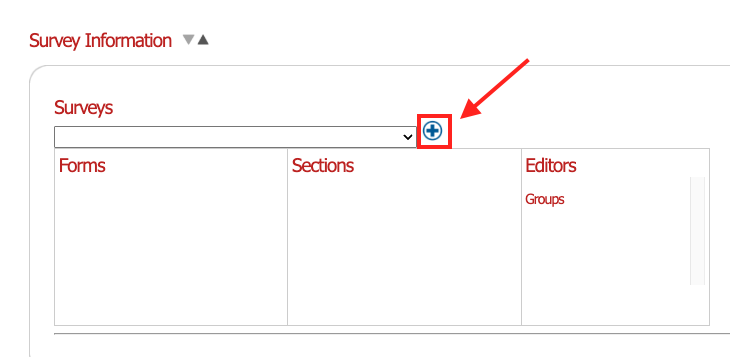
- Create a new survey by clicking the Add Survey (blue plus) icon.
Note:
On this screen, you can also assign edit permissions to others on your team by selecting their name in the "Editors" column. Editors can modify and assign this survey.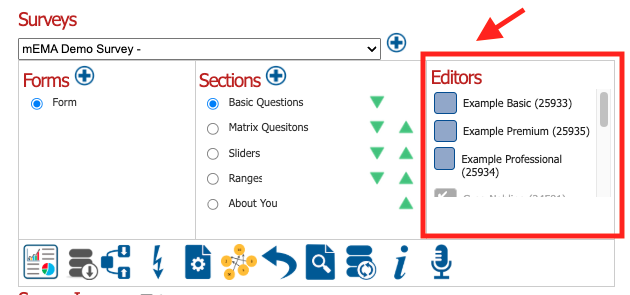
Naming your Survey
- Under Survey Images, click into any title field to open the editing tools. This will launch the survey editing wizard, where you can configure the module and text. Select the pencil icon (✏️) to open the editing wizard.

- Enter a name for your survey in the Short Text field.
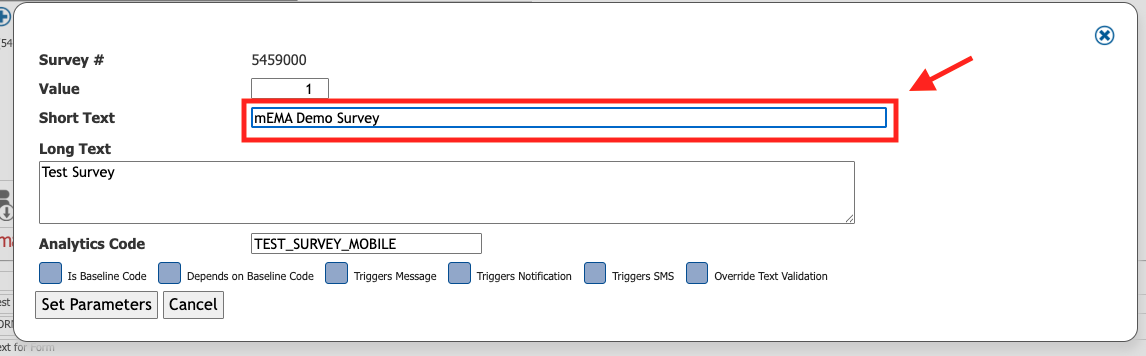
The Long Text and Analytics Code fields will automatically populate based on the Short Text.
These fields can be edited after text has been entered.
Important Naming Rules
- Short Text and Analytics Code fields are limited to 40 characters
- Exceeding 40 characters may cause survey upload failures
- Analytics Codes must:
- Use ALL CAPS
- Contain no spaces
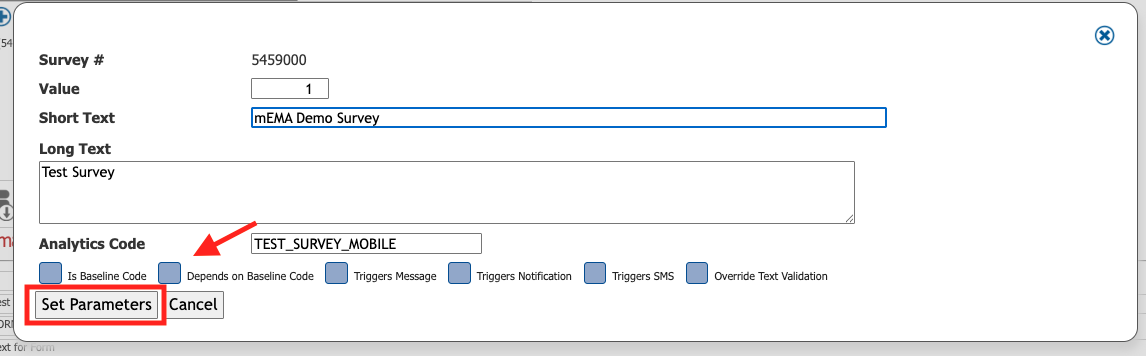
Refer to the Analytics Code guidelines for best practices.- Click Set Parameters to save the new survey name.
Click here for the Icon Guide⚠️ Important Data Integrity Warning
Once a survey has been used to collect live participant data, you should not make significant changes to:
Survey structure
Question types
Data formats
Making these changes can break or invalidate previously collected data.
If changes are required after data collection has begun:
Copy the existing survey
Apply changes to the copied version
Use the new survey going forward
Next Steps
Continue to the next article: Adding Questions
When you’re ready to deploy the survey to participants, follow these steps.
Participants must download updates in the mEMA app for the survey to appear with any new changes.