
Insert Hyperlinks
You can add links to the long text of a question so participants can open a website, a task, or a video without losing their place in the survey. mEMA supports four kinds of links, each written as a short code inside square brackets.
Link type | Where the page opens | Best for |
In-app link | A pop-up window inside the app | Simple links to sites that allow embedding |
Poplink | Full screen, inside the app | Online tasks and pages that need the participant's ID |
Jumplink | The phone's own browser, outside the app | Sites that can't be shown inside an app |
YouTube video | Embedded directly in the question | Videos and Shorts |
Always use https://
- At the start of every URL. Links that start with http:// may not open.
1. In-app link
Opens a website in a pop-up window. The survey stays paused behind it.
Step 1: Write the link
Inside square brackets, type the URL, a vertical bar |, and the text participants will tap:
[https://mema.ilumivu.com|Here]
Tip: the vertical bar is on the same key as the backslash (\), above the Return/Enter key. Hold Shift to type it.
Step 2: Add it to the question
Paste the link into the long text of the question.

Step 3: What participants see
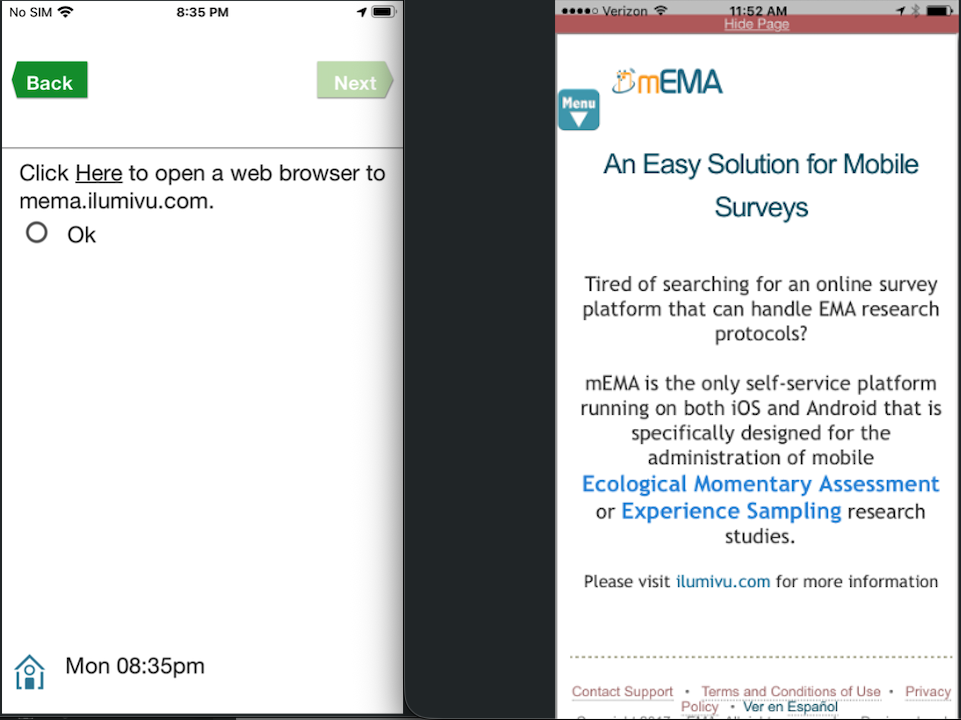
Tapping the link opens the website in a window over the survey. Participants tap Hide Page at the top to return to the survey.
Note
- This only works with websites that allow being shown inside another app (iframe embedding). If the page doesn't load, use a Jumplink instead.
2. Poplink
A poplink works like a jumplink, but the page opens full screen inside the mEMA app instead of in the phone's browser. Participants never leave the survey, and you can pass their mobile code or respondent ID to the page.
Step 1: Write the poplink
Inside square brackets, type poplink followed by these options. Put each value in single quotes.
Option | Required | What it does |
url | Yes | The website to open, starting with https:// |
text | No | The text participants tap, for example "click here" |
prmkey | No | The name of a parameter to add to the URL |
prmval | No | The value for that parameter. Use mbl_cod for the participant's mobile code or rsp_id for their respondent ID. Any other value is sent as written. |
Example: a simple poplink
[poplink url='https://dev.mema.ilumivu.com/poplink_test/' text='Open the task']
Example: a poplink that sends the participant's mobile code.
[poplink url='https://dev.mema.ilumivu.com/poplink_test/' text='Should log mobile code' prmkey='ParticipantMC' prmval=mlb_cod]
This opens https://dev.mema.ilumivu.com/poplink_test/?ParticipantMC= followed by the participant's mobile code.
Step 2: Add it to the question
Paste the poplink into the long text of the question, the same way as any other link.
Step 3: What participants see
Tapping the link opens the page full screen under a blue Hide Page bar. Tapping the bar returns participants to the same question.
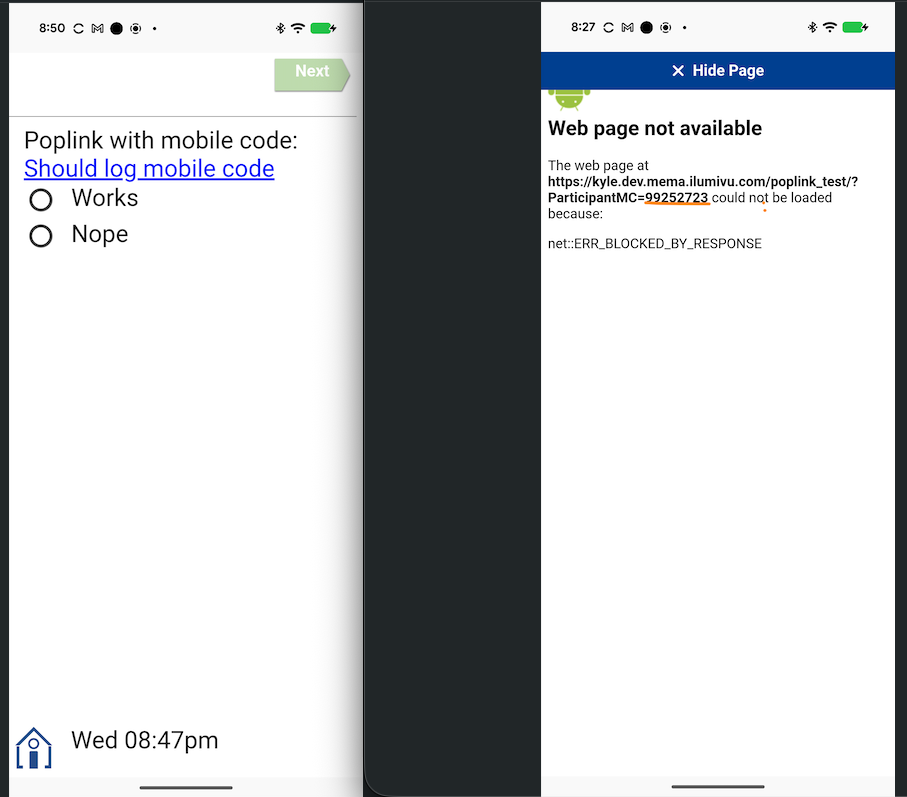
The screenshot shows a page that that doesn’t exists to show how the link would look like.
Notes for Poplinks
- Available in the mEMA-10 app only.
- Type poplink, mbl_cod and rsp_id in lowercase.
- Only one prmkey / prmval pair per link. Fixed parameters can be written directly into the url.
- Don't use single quotes or ] inside a value.
3. Jumplink
Takes participants out of the app and opens the page in their phone's default browser.
Step 1: Write the jumplink
Inside square brackets, type jumplink followed by these options. Put each value in single quotes.
Option | Required | What it does |
url | Yes | The website to open, starting with https:// |
text | No | The text participants tap, for example "click here" |
prmkey | No | The name of a parameter to add to the URL |
prmval | No | The value for that parameter. Use mbl_cod for the participant's mobile code or rsp_id for their respondent ID. Any other value is sent as written. |
Example: a simple jumplink
[jumplink url='https://ilumivu.com' text='Here']
Example: a jumplink that sends the participant's mobile code
[jumplink url='https://ilumivu.com' text='Here' prmkey='id' prmval='mbl_cod']
This opens https://ilumivu.com/?id= followed by the participant's mobile code, for example ?id=12345678.
Step 2: Add it to the question
Paste the jumplink into the long text of the question.

Step 3: What participants see
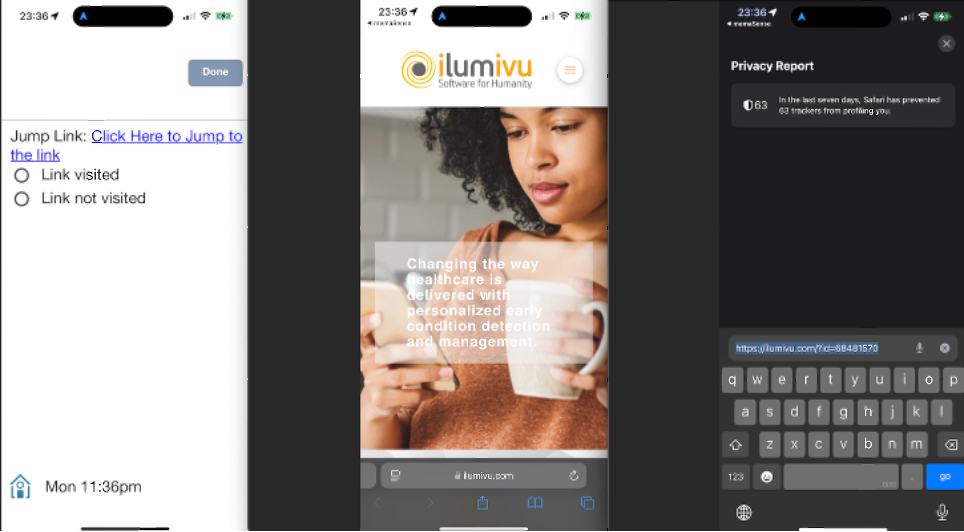
Tapping the link leaves the app and opens the page in the phone's default browser, with any parameters added.
Notes for Jumplinks
- If the website redirects to another address, the added parameters are lost.
- Android only: links are converted to lowercase.
4. YouTube video
Plays a YouTube video or Short directly inside the question.
Step 1: Find the video ID
Open the video in a browser and copy the part of the URL after ?v=.
https://www.youtube.com/watch?v=hvL1339luv0 → the ID is hvL1339luv0
Step 2: Add the code to the question
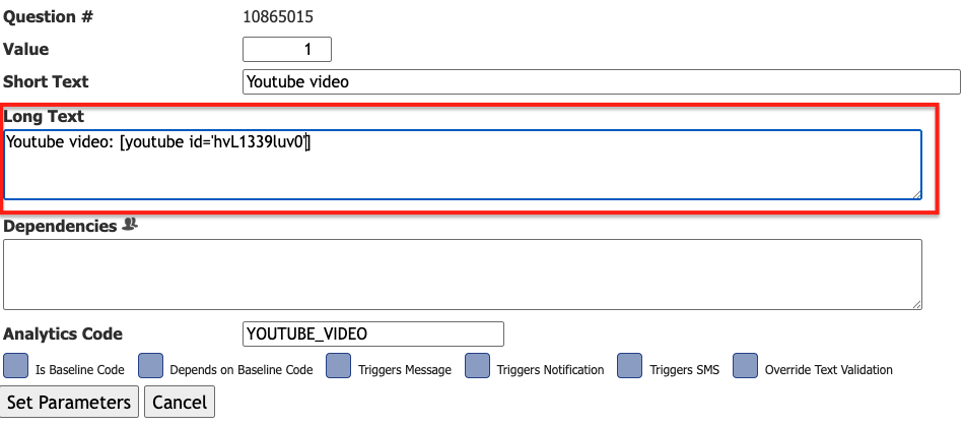
Paste this into the long text of the question, using your video ID:
[youtube id='hvL1339luv0']
Step 3: What participants see
The video appears embedded in the question and plays without ads.
Notes for YouTube videos
- Blank space instead of the video? There was no internet connection when the survey started. Exit and re-open the survey once connected.
- Android: don't tap links, suggested videos or channel buttons inside the video. They open YouTube inside mEMA, and the app must be restarted to get back.
- Android: full-screen mode isn't available.
Question type compatibility
Links and videos work in the long text of these question types:
Supported | Not supported |
✓ Text | ✗ Dropdown |
✓ Continuous slider | ✗ Matrix |
✓ Discrete slider | ✗ Range (all types) |
✓ Single selection | |
✓ Multiple selection | |
✓ Time |