How to Set Up Real-Time Garmin Data Collection
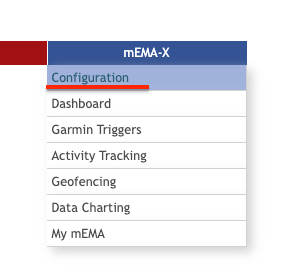
Step 1. Open mEMA10 Configuration
 Step 2. Go to Sensor Parameters
Step 3. Enable Garmin
Step 4. Optional: Enable Garmin Real-Time Acceleration
Step 5. Optional: Select Acceleration Rate (Recommended: 25 Hz)
Step 6. Click Save Changes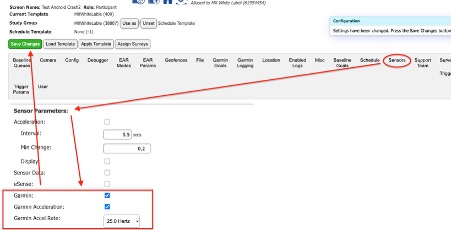
Step 7. Ensure the Garmin watch is in **pair mode**.
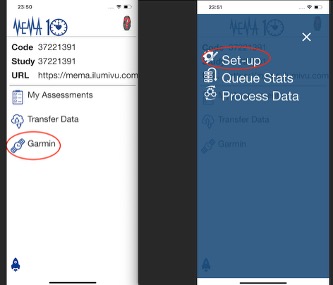
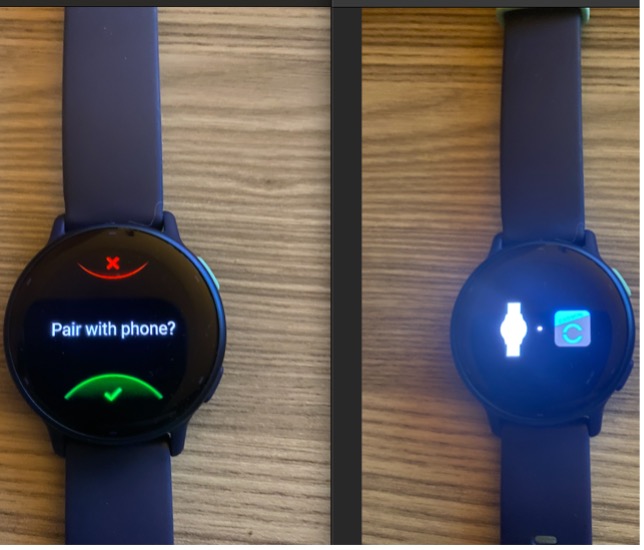 Step 8. On the Home screen, tap the **Garmin** button, then tap **Set-up**.
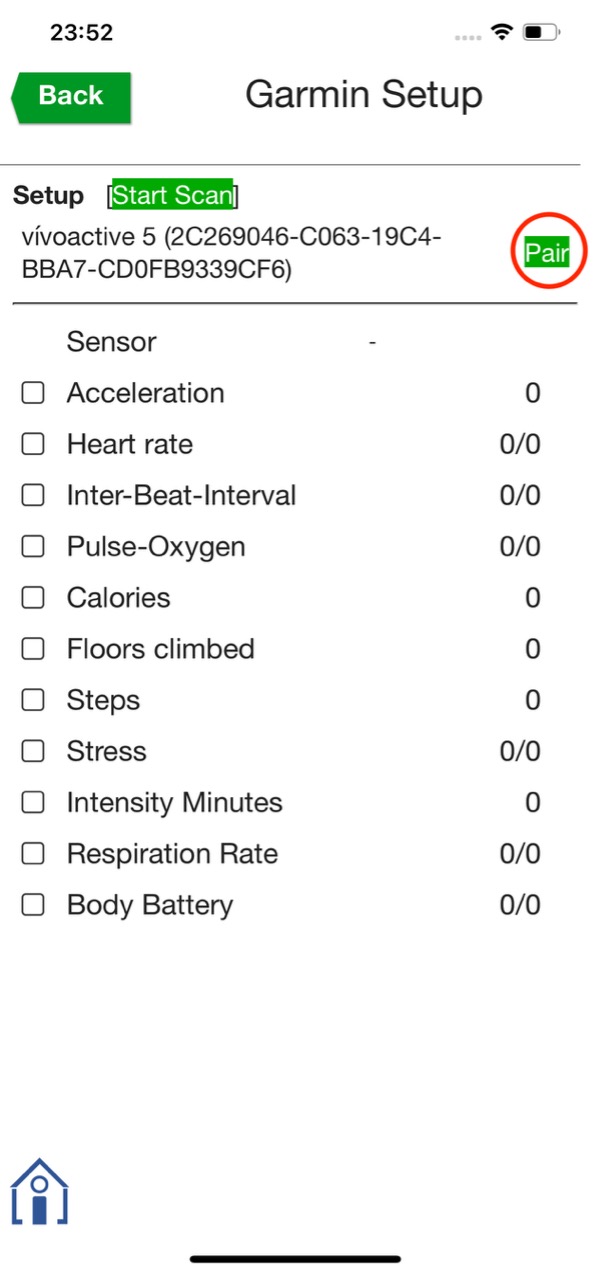
Step 9. Tap **Pair** next to the detected Garmin device.
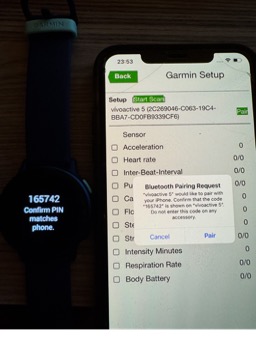
Step 10. Enter the pairing code and tap **Pair** (or tap **Pair** directly if no code is required).
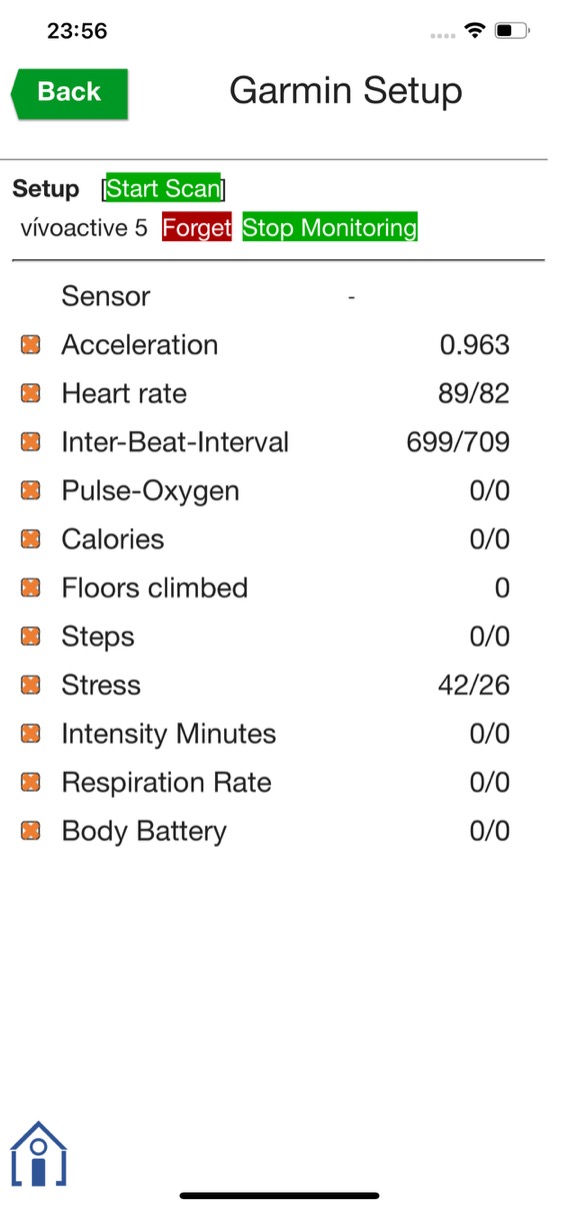
Step 11. Once paired, Garmin data collection will begin automatically.
How to Set Up Garmin Logged Data Collection
Step 1. Open mEMA10 Configuration
Step 2. Go to Sensor Parameters
Step 3. Enable Garmin
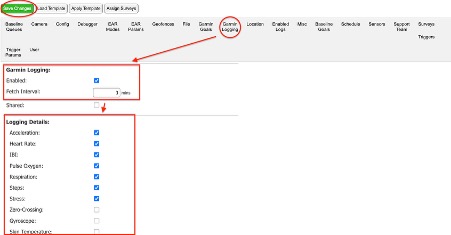
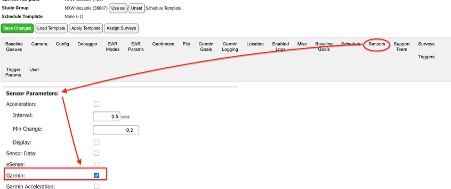 Step 4. Open the Garmin Logging tab
Step 5. Enable Logging
Step 6. Set Fetch Interval
Step 7. Select data types
Step 8. Click Save Changes
Then pair the watch using the same steps above.
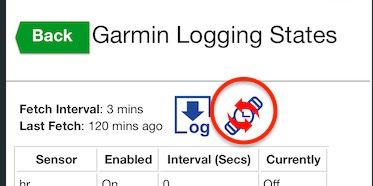
Garmin Logging State Screen
The Garmin Logging State screen allows you to view:
• Fetch interval – this should be the time that was set on the Configuration page for mEMA10 app to ping the watch and get the Garmin log data
• Last sync time – this represents the time elapsed from the previous sync. Note that the time doesn’t visually update while on the screen. To see it updated, you need to do a screen transition.
• Enabled sensors – in the table, it’ll show ON for the sensors that will be collected and OFF for the sensors that aren’t collected
• Sensor logging intervals – in the table, this shows the frequency of the logged data, e.g., hr (heart rate) is logged every 30 seconds, ibi (interbeat interval) is logged every 1second
• Last fetch status – in the table, this represents the status of the last fetched. If it's ON, it was fetched, and if it’s OFF, it means it wasn’t fetched.
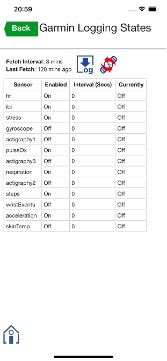
You can also manually trigger a sync by tapping on the button that has a watch icon with 2 arrows above it.