
mEMA10 - Activity Tracker Feature
1. Overview
The Tracker feature in mEMA10 allows study participants to log personal health data directly from their mobile device. Researchers control what participants can track, review all recorded data from the mEMA website, and apply tracking templates across participants or entire studies.
This feature is purpose-built for Ecological Momentary Assessment (EMA) research, where capturing self-reported events in real time — rather than through retrospective surveys — is central to study validity.
What Participants Can Track
All trackable items fall into four categories:
Category | Examples | Default Metric | Notes |
Symptoms | Headache, Nausea, Blood Pressure | Degree / BP | Tracks intensity or physiological values |
Mood | Happy, Anxious, Stressed | Degree (pos/neg/neutral) | Intensity slider; valence determines icon set |
Activities | Running, Zoom call, Going to sleep | None (timestamp only) | Records when the activity occurred |
Medications | Adderall, Aspirin, Ibuprofen | Dosage (free text) | Participants enter their dosage amount |
2. Step 1 — Enable the Feature
Tracking is disabled by default for all participants. A researcher must enable it before a participant can see the tracking button in their app.
If the feature is not visible in your Configuration panel, contact customer support to have it activated for your account.
How to Enable Tracking for a Participant
- From the mEMA10 dropdown menu, go to Configuration.
- Select the participant you want to configure.
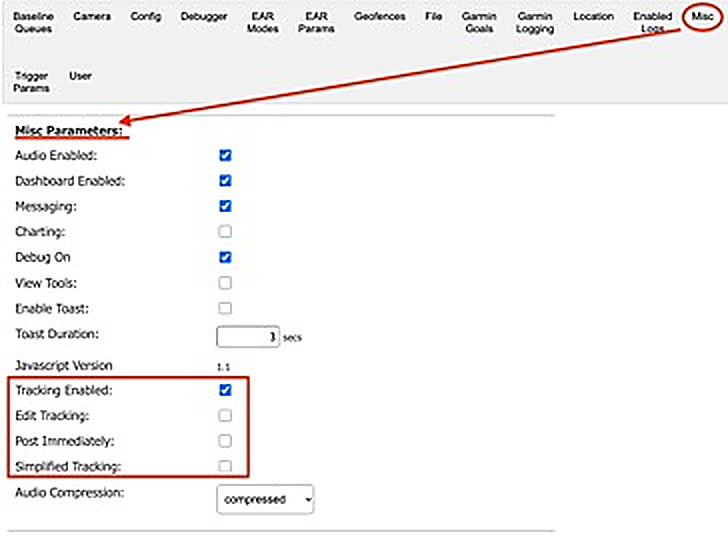
- Click the Misc tab.
- Enable the checkboxes described in the table below, then save the changes.
Configuration Flags
The four tracking flags and their recommended usage:
Flag | Default | What It Does |
Tracking Enabled | Off | Master switch. Turns on the "Keep Track" button in the participant's app. Nothing else works until this is on. |
Edit Tracking | Off | Allows participants to add, rename, or hide their own tracking items directly from the app. Enable only if you want participants to self-customize. |
Post Immediately | Off | Sends recorded events to the server the moment they are logged, instead of waiting for the participant's next manual Upload. Useful for studies that need near-real-time data. |
Simplified Tracking | Off | Switches the app to an icon-only presentation mode. This was introduced for internal testing and is not recommended for live studies. |
3. Step 2 — Set Up Trackers
Once tracking is enabled, go to Tracker under the mEMA10 dropdown. Select your participant to open their tracker configuration page.
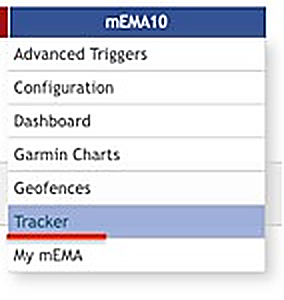
The Tracker Configuration Page
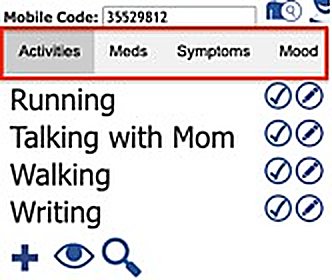
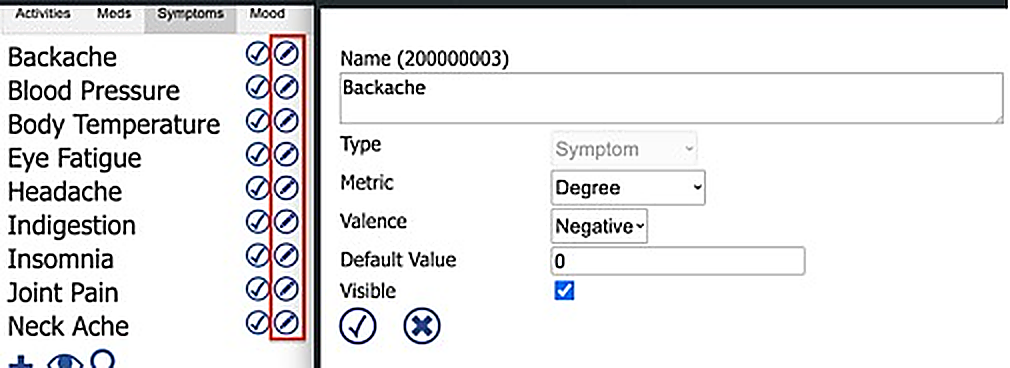
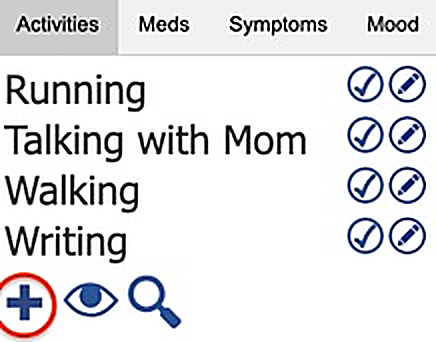
The page is organized into four category tabs (Symptoms, Mood, Activities, Medications). Within each tab, you can:
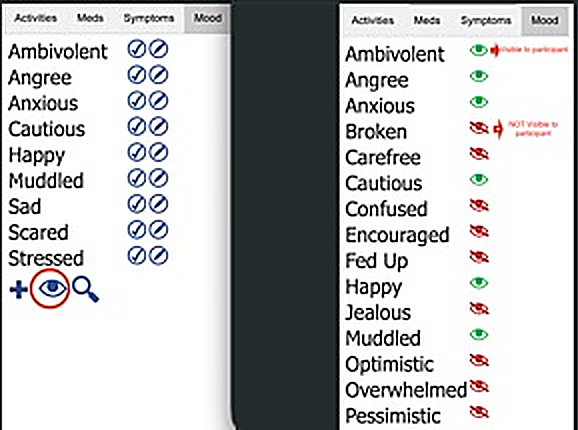
- See all existing tracker items (both visible and hidden)
- Toggle item visibility for the participant
- Edit item details (name, metric, valence, default value)
- Add new custom trackers
Template Inheritance — How Defaults Work
Every new participant starts with the system default tracker set. A study-level Tracker Template is now available, allowing researchers to define a shared tracker configuration once and push it to all participants in a study.
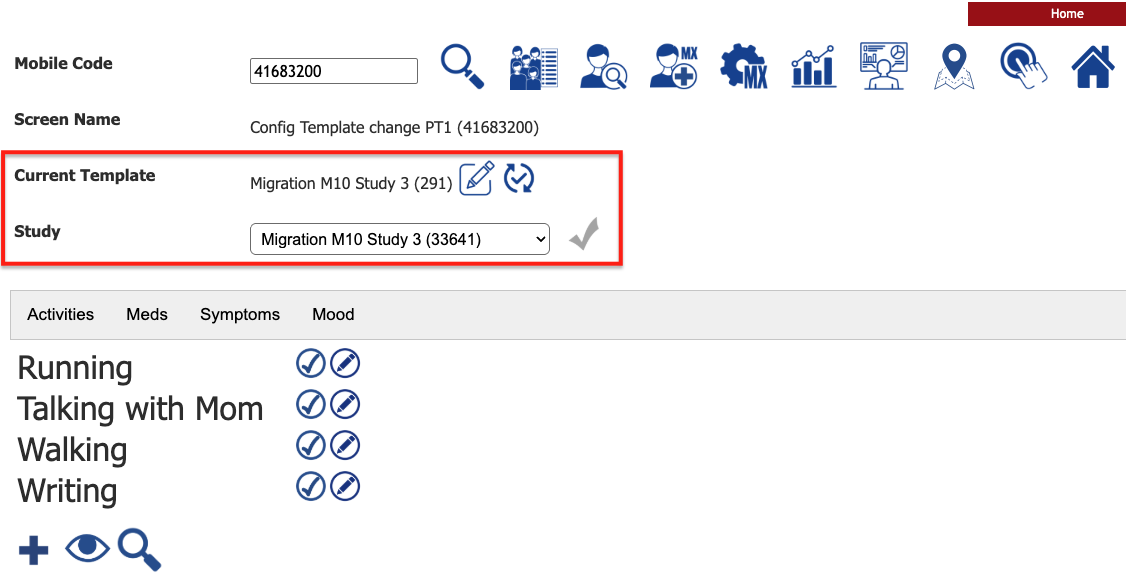
The Tracker Template is independent of the Configuration Template — applying one does not affect the other. When a study has a Tracker Template set up, a Current Template row is shown on the participant’s Tracker page with two action buttons:
- Edit Template — Opens the study’s Tracker Template for editing. While in template-editing mode, a Close Template button appears in the toolbar so you can return to the individual participant’s view when done.
- The template automatically saves whenever you make a change to it so there’s no need for any addional actions after making any changes.
- Apply Tracks Template — Immediately pushes the study’s current Tracker Template to this one participant, overwriting their individual tracker configuration.
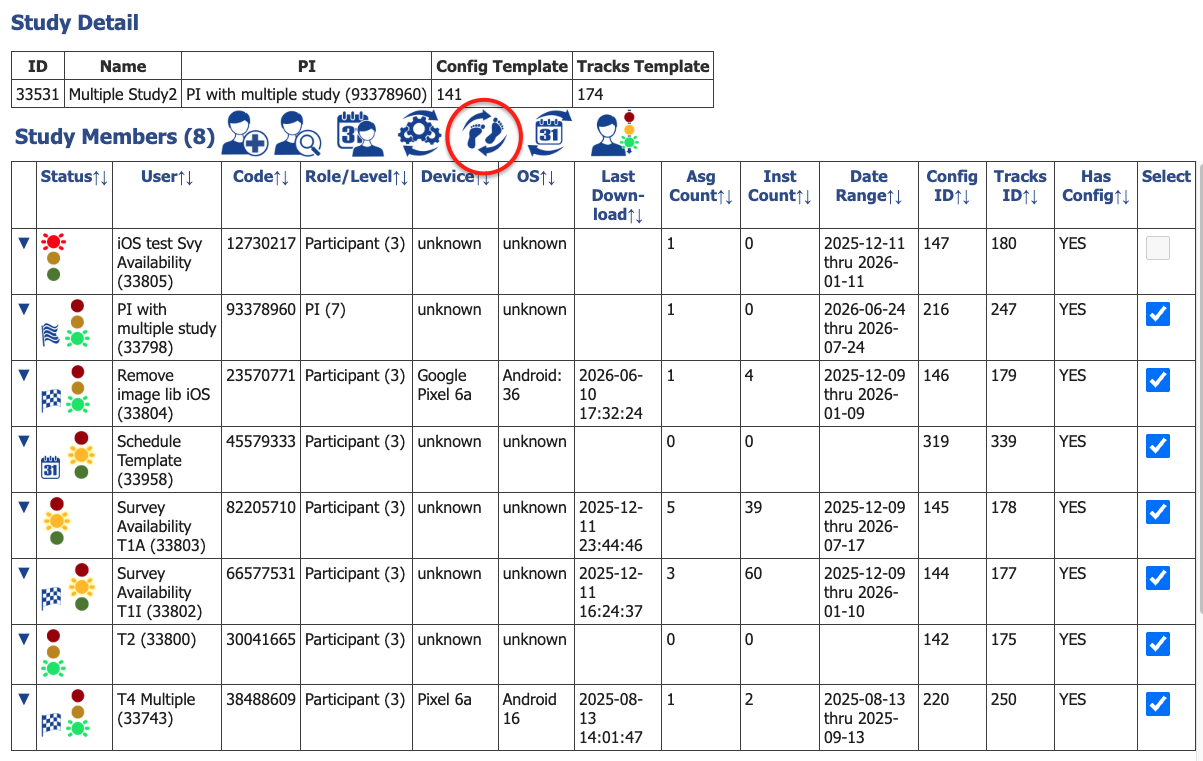
To apply the Tracker Template to multiple participants at once, go to the Study Detail view, check the boxes next to the participants you want to update, and click Apply Tracker Template in the header. This overwrites each selected participant’s individual tracker configuration with the study template in a single action.
Adding or Editing a Tracker
To add a new tracker, select the relevant category and tap the “+” button, then fill in the fields below. To edit an existing tracker, click its edit button.
Field | Options / Format | Notes |
Name | Free text | What the participant sees in the app (e.g., "Blood Pressure — Morning"). |
Type (Category) | Symptoms, Mood, Activities, Medications | Set by which tab you're in. Cannot be changed after the item is created. |
Metric | None, Degree, Temperature, Dosage, Blood Pressure | Determines what input prompt participants see. See the Metric Types table below. |
Valence* | Positive, Negative, Neutral | Only applies to the Degree metric. Controls the icon set and slider direction that the participant sees. |
Default Value | Varies by metric | Pre-fills the input when the participant opens the recording prompt (e.g., "98.6°F" for temperature). |
Visible | On / Off | Whether the participant can see this item, hiding does not delete historical data. |
*Valence generally refers to the capacity, strength, or emotional "value" of something. The specific definition depends on the context in which it is being used
ℹ IMPORTANT |
The category (Type) field is locked once a tracker is created and cannot be changed. If you need a tracker in a different category, create a new one in the correct tab. |
Metric Types — What Participants See
Metric | Participant Input | What Gets Recorded |
None | Date and time picker only | A timestamp. Use for activities where knowing when is enough (e.g., "Woke up"). |
Degree | Intensity slider + date/time | A number on a scale. Scale range and icons depend on the Valence setting (see below). |
Temperature | Numeric value + °F or °C selector + date/time | The temperature value and unit (e.g., 98.6 Fahrenheit). |
Dosage | Free-text field + date/time | Whatever the participant types (e.g., "200mg", "1 tablet"). |
Blood Pressure | Systolic + Diastolic fields + date/time | Both values are stored together (e.g., 120/80). |
Degree Metric — Valence Settings
When using the Degree metric, the Valence setting changes how the participant's slider is presented:
Valence | Slider Range | Typical Use |
Positive | 0 to 5 | Items that move from absent to strongly present in a good direction (e.g., energy levels, happiness). |
Negative | 0 to 5 | Items that move from absent to strongly present in a bad direction (e.g., pain intensity, anxiety). |
Neutral | 0 to 6 (centered at 3) | Items on a bipolar spectrum (e.g., mood from very bad to very good). |
ℹ NOTE |
Valence determines both the icon set displayed to participants and the slider range. Choose carefully — this shapes how participants perceive and report intensity for that item. |
4. Step 3 — Participant Experience
Once a researcher has enabled tracking and configured the tracker items, here is what participants need to do and what they will see.
First-Time Setup on the App
- The participant opens the mEMA10 app and performs a Download Updates.
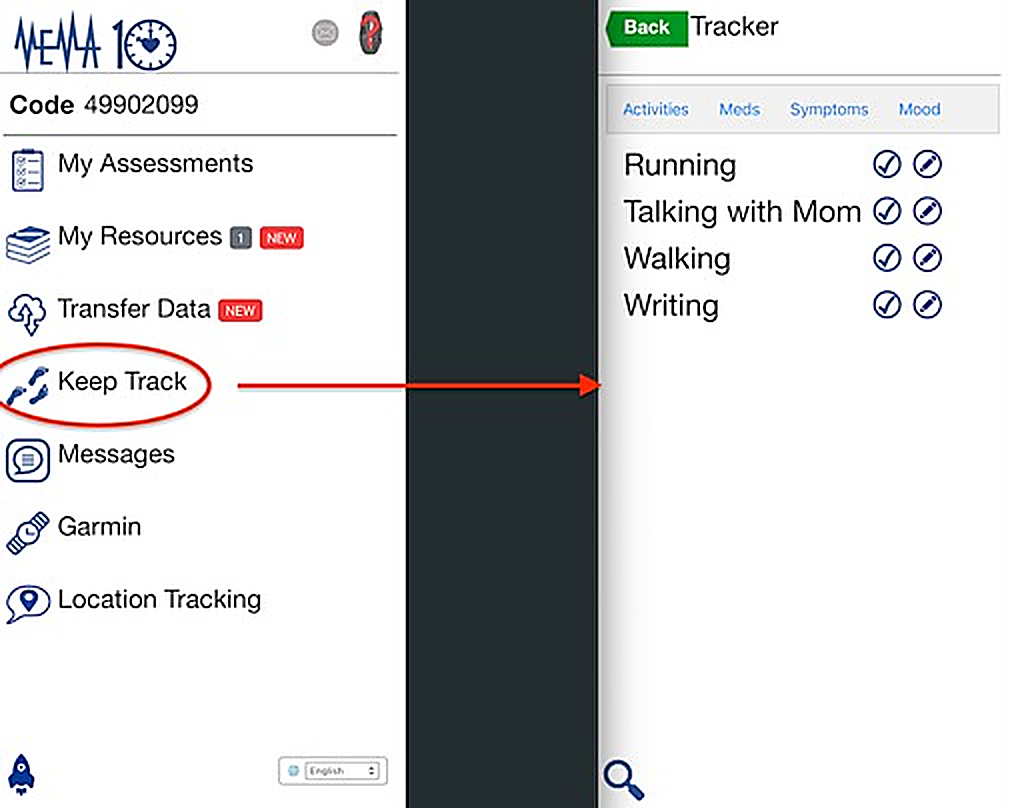
- After the download, a new button labeled Keep Track appears on the home screen.
- Tapping Keep Track opens the tracking interface, showing all visible tracker items.
Recording a Tracking Event
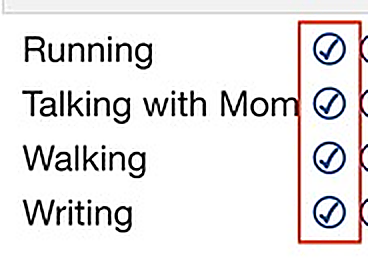
- Participant taps the checkmark icon next to the tracker they want to log.
- A prompt appears with the date and time (defaulting to right now — but the participant can adjust this to back-date an entry they forgot to log).
- Depending on the metric type, an additional input appears (slider, number field, text field, or blood pressure fields).
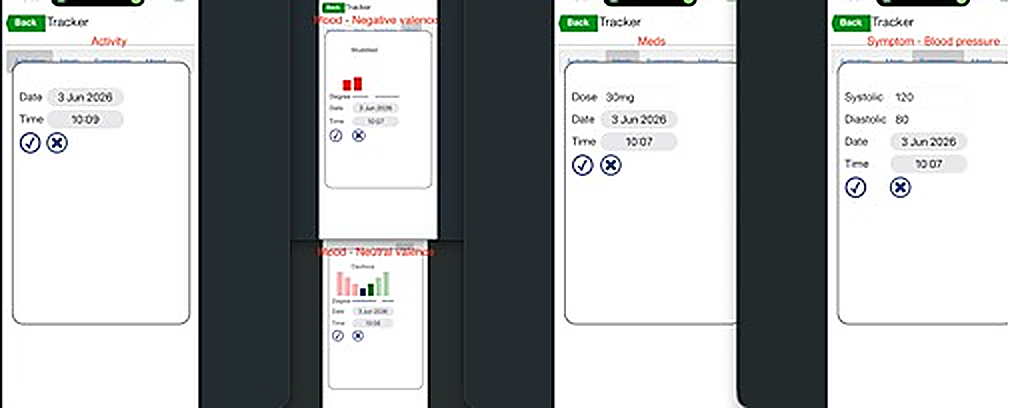
- Participant confirms — the event is saved locally on the device and uploaded to the server on the next sync (or immediately if Post Immediately is enabled).
ℹ NOTE |
Participants can backdate events. This is intentional — it lets them log a symptom or activity they forgot to record at the time it occurred. |
What Participants Can Edit (if Edit Tracking is enabled)
If the researcher has enabled the Edit Tracking flag, participants will also see an edit button on each item. They can change:
- Item name
- Metric type
- Default value
- Whether the item is visible or ongoing
5. Viewing Recorded Data
Both researchers and participants can view all recorded tracking events in a chronological log.
Researcher View (Admin Website)
- Go to Tracker under the mEMA10 dropdown.
- Select the participant whose data you want to review.
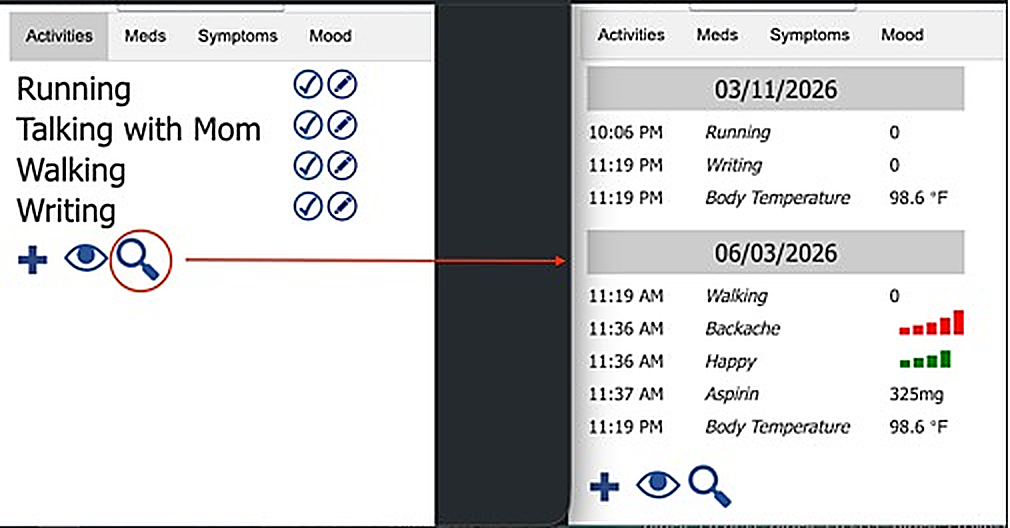
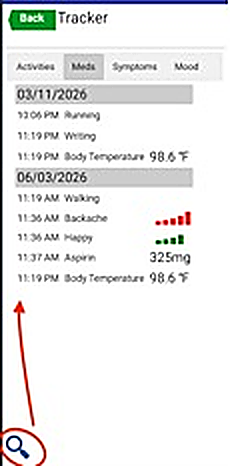
- Click the magnifying glass icon to open the data view.
- A chronological table appears showing all recorded events with their date, time, item name, metric, and recorded value.
Researchers can also record events on behalf of a participant directly from the website — the recording prompt flow is identical to the app experience.
Participant View (Mobile App)
Participants can view their own event history by tapping the magnifying glass icon on the Keep Track page. They see the same chronological log, showing their recorded events across all categories.
Tracker + Garmin Charts
One of the most powerful ways to use tracking data is alongside biometric data from a Garmin device. All recorded tracking events automatically appear as overlays on the Garmin Charts page.
- The participant wears their Garmin device, and the app records sensor data (heart rate, steps, etc.).
- The researcher opens the Garmin Data page and selects the sensors they want to visualize for a specific day.
- When the chart loads, any tracking events recorded on that day are overlaid on the same timeline.
ℹ NOTE |
This overlay makes it easy to correlate self-reported events (e.g., "Took Adderall", "Headache") with objective biometric signals — a core use case for EMA research. |
6. Key Concepts & Common Pitfalls
This section highlights the non-obvious rules that researchers are most likely to encounter.
Fixed Capacity (50 Slots Per Category)
Each category has exactly 50 item slots.
If all 50 slots in a category are in use (none are Undefined), you cannot add more items. You can hide unwanted items to free up visual space, but the slot count remains at 50.
Visibility Does Not Delete Data
Hiding a tracker item removes it from the participant's view but does not delete any recorded events. All historical data for that item is preserved and still visible to the researcher. This is by design — you can safely hide items that are no longer relevant without losing records.
Category Is Permanent
Once a tracker item is created, its category (Symptoms, Mood, Activities, Medications) cannot be changed. If you need to move an item to a different category, you must create a new item in the correct category and hide or repurpose the original.
Timestamps Are Participant-Entered
Participants choose the date and time for each event they record. The system defaults to the current time, but participants can edit this — useful for back-dating entries they forgot to log.
Sync Behaviour
By default, tracking data is uploaded to the server the next time the participant manually syncs the app. If you need more timely data, enable the Post Immediately flag for that participant.
If both the researcher and participant can edit tracker items, the last save wins. There is no merge — whichever side saves most recently overwrites the other. Coordinate with participants if you are making structural changes to their spec.
7. Quick Reference — Researcher Workflow
Use this as a checklist when setting up tracking for a new participant or study.
Initial Study Setup (Do Once)
- Confirm the Tracking feature is active on your account (contact support if not).
- Familiarise yourself with the default tracker items (Section 1) so you know what each participant starts with.
- Plan any category-level adjustments you will need to make per participant, such as which items to hide or which custom trackers to add.
Per-Participant Setup
- Go to Configuration → select participant → Misc tab.
- Enable Tracking.
- Optionally enable Edit Tracking (if participants should self-customize), Post Immediately (for real-time sync), as needed.
- Go to Tracker → select participant. If a Tracker Template is set up for the study, click Apply Tracks Template to push the study template to this participant. Otherwise, review their default tracker items and make any adjustments needed manually.
- Make any participant-specific adjustments to item visibility or defaults.
Ongoing Monitoring
- View recorded data: Tracker → select participant → magnifying glass icon.
- View data alongside biometrics: Garmin Data page → select participant and day → tracking events appear as overlays automatically.
- If a participant hides an item they should not have: go to Tracker → select participant → re-enable visibility for that item.