
Garmin Watch Pairing: Troubleshooting FAQ
Answers to the most common problems when pairing a Garmin watch with the mEMA app and getting data to flow.
Before You Start
Many pairing problems are solved by checking these basics first:
- The watch is charged to at least 30%.
- Bluetooth is turned on on the phone.
- The watch is within about 1 meter (3 feet) of the phone during pairing.
- The phone has the latest version of mEMA installed.
- Garmin is enabled in Sensor Parameters in the study configuration, and the changes were saved.
Pairing Problems
Q: How do I put my Garmin watch into pair mode?
The menu path depends on the watch model. On most Garmin watches:
- Hold the Menu (Down) button.
- Go to Settings > Phone (or Connectivity).
- Select Pair Phone.
If your model uses a different path, check the owner’s manual for your watch on Garmin’s website.

Q: My watch won’t enter pair mode. What should I do?
- If the watch was previously paired with another phone or app, it may reconnect to that device instead. Unpair it from the other device, or turn Bluetooth off on that device.
- Restart the watch: hold the Light (power) button until it turns off, then turn it back on and try again.
Q: I don’t see the Garmin button on the mEMA Home screen.
This usually means the study configuration hasn’t reached the phone yet.
- Confirm that Garmin is enabled in Sensor Parameters and that Save Changes was clicked.
- Restart the mEMA app so it downloads the latest configuration.
Q: mEMA doesn’t detect my Garmin watch.
- Check that the watch is still in pair mode. Pair mode times out after a short time. Put the watch back into pair mode, then tap Set-up again in mEMA.
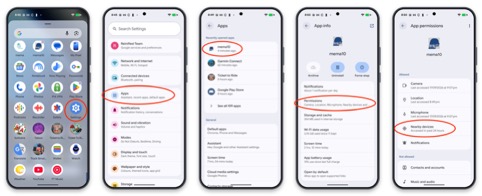
- Check app permissions. On Android, mEMA needs Nearby devices and Location (Settings > Apps > mEMA > Permissions). On iOS, mEMA needs Bluetooth access (Settings > mEMA > Bluetooth).
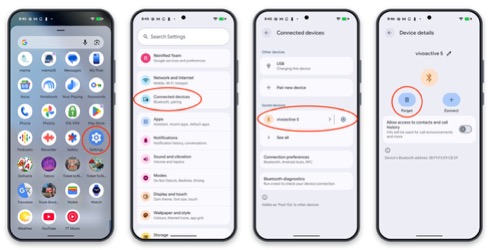
- Remove the watch from the phone’s Bluetooth list. If the watch appears in the phone’s Bluetooth settings as a saved device, tap it and choose Forget or Unpair. Pairing must be done from within mEMA , not from the phone’s Bluetooth menu.
- Reduce interference. Move away from other Bluetooth devices and other Garmin watches, especially when setting up several participants in the same room.
Restart the app: Force-close mEMA and open it again, then retry.
Q: My watch is already connected to Garmin Connect and doesn’t show up in mEMA .
When the watch is already connected to the phone through the Garmin Connect app, mEMA may not be able to see it. The fix is to pair the watch with mEMA first, and only then connect it to Garmin Connect.
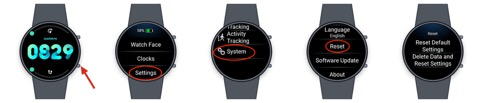
- Factory reset the watch. On most models: Settings > System > Reset > Delete Data and Reset Settings.
- Remove the watch from the phone’s Bluetooth settings (Forget / Unpair) and from the Garmin Connect app.
- Restart the mEMA app.
- Put the watch in pair mode and pair it with mEMA first.
- Once pairing with mEMA is complete, connect the watch to the Garmin Connect app.
Important: A factory reset erases all data stored on the watch. If the watch is already collecting study data, make sure that data has synced before resetting.
Q: The pairing code is rejected, or pairing fails.
- Make sure the code you enter exactly matches the code shown on the watch.
- Pairing codes expire quickly. If pairing fails, put the watch back into pair mode to get a new code and try again.
- If the phone shows a system Bluetooth pairing request popup, accept it. Declining it or letting it time out causes pairing to fail.
- Restart the watch and the phone, forget the watch in the phone’s Bluetooth settings, then try again.
Restart the app: Force-close mEMA and open it again, then retry
Data Collection Problems
Q: The watch is paired, but no data is being collected.
- Open the Garmin Logging State screen and check Last sync time and Last fetch status.
- Tap the sync button (watch icon with two arrows) to trigger a manual sync. Note that the sync time only updates after you leave and return to the screen.
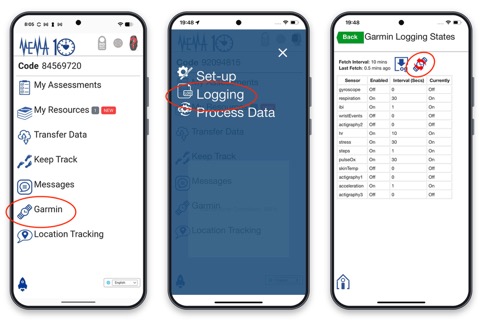
- For logged data collection, confirm that Logging is enabled, the Fetch Interval is set, and the correct data types are selected in the configuration, and that the changes were saved.
- If Garmin Real Time data isn’t collected go to the Garmin Setup page and make sure that the data fileds are not turned off.
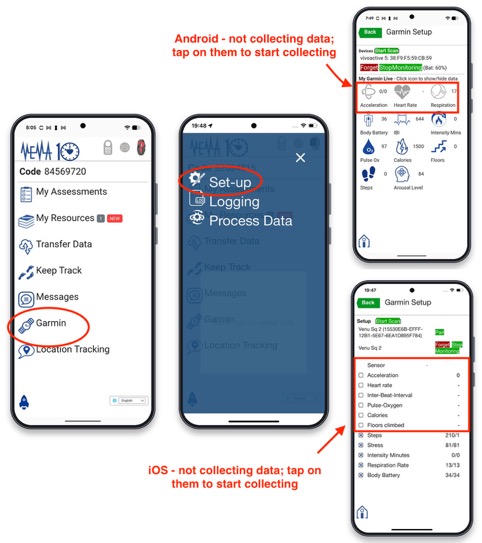
- On Android, set battery usage for mEMA to Unrestricted (Settings > Apps > mEMA > Battery) so the system doesn’t stop it in the background. On iOS, make sure Background App Refresh is on for mEMA .
Restart the app: Force-close mEMA and open it again, then retry.
Q: The watch keeps disconnecting from the phone.
- Keep the phone within Bluetooth range, roughly meters (30 feet) and less through walls.
- Avoid Battery Saver or Low Power Mode on the phone.
- Leave mEMA running in the background. Swiping the app closed can stop data collection.
Last Resort
Q: Nothing has worked. What else can I try?
As a final option, fully reset both the watch and the app, then pair from scratch:
- Factory reset the Garmin watch (on most models: Settings > System > Reset > Delete Data and Reset Settings).
- Remove the watch from the phone’s Bluetooth settings (Forget / Unpair).
- Uninstall the mEMA app, then reinstall it from the App Store or Google Play.
- Log in to mEMA and grant all requested permissions.
- Put the watch in pair mode and pair it with mEMA .
Important: Uninstalling mEMA removes any data on the phone that hasn’t been uploaded yet, and a factory reset erases data stored on the watch. Make sure all data has synced before doing this.
Q: I’ve tried everything and it still doesn’t work.
Submit a support ticket and include:
- Phone model and operating system version
- Garmin watch model
- mEMA app version
- What you were doing when the problem happened
- Screenshots of any error messages or of the Garmin Logging State screen