
mEMA · Participant Guide
Pairing Your Garmin Watch
A step-by-step guide to connecting your study watch to the mEMA app on your phone.
Your study uses a Garmin watch to collect information such as heart rate, steps and activity. The watch sends this information to the mEMA app on your phone. You only need to do this pairing once, at the start of the study.
The whole process takes about five minutes.
Before You Start
- Your Garmin watch is charged.
- The mEMA app is installed on your phone and you are logged in with your study code.
- Bluetooth is turned on on your phone.
- The watch and the phone are close together, within arm's reach.
Tip: Do this somewhere quiet, away from other Bluetooth devices and other watches. If someone nearby is pairing a watch at the same time, your phone may find the wrong one.
Step 1: Get the Watch Ready
- Turn the watch on by holding the top button on the left side until the screen lights up.
- Choose your language from the list, for example English.
- The watch asks Pair with phone? Tap the green tick at the bottom of the screen.
- Leave the watch on this screen. It is now waiting for your phone.
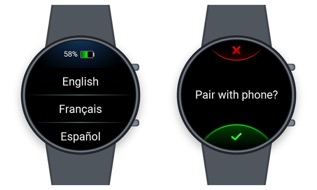
Choose a language, then tap the green tick when the watch asks to pair with a phone.
Important: Do not pair the watch using your phone's own Bluetooth settings, and do not use the Garmin Connect app. The watch must be paired from inside the mEMA app.
Step 2: Pair the Watch in the mEMA App
- Open the mEMA app on your phone.
- On the home screen, tap Garmin.
- Tap Set-up.
- Your watch should appear in the list. If it does not, tap Start Scan and wait a few seconds.
- Tap Pair next to your watch.
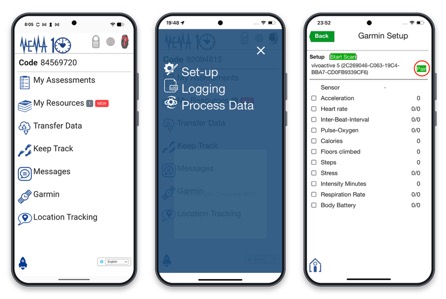
Tap Garmin on the home screen, then Set-up, then Pair next to your watch.
Step 3: Confirm the Code
Your watch and your phone will both show a code so you can check they are talking to each other.
- Check that the code on the watch matches the code on the phone.
- On the phone, tap Pair.
- On the watch, confirm the pairing if it asks you to.
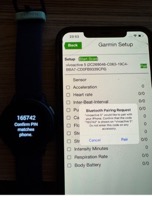
The same code appears on both screens. Confirm it on the phone, then on the watch.
Tip: If the codes disappear before you can confirm them, start again from Step 2. The codes are only valid for a short time.
Step 4: Check That It Worked
When pairing is complete, the Garmin Setup screen shows your watch name with Forget and Stop Monitoring next to it, and numbers start to appear beside the sensors. That means data is being collected.
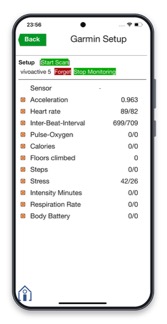
A paired watch: sensor values such as heart rate and acceleration appear on the Garmin Setup screen.
Some values, such as heart rate, may take a minute or two to appear, and some only update when you are moving. That is normal.
Wearing the Watch Day to Day
- Wear the watch as your study team asked, usually all day and, if requested, overnight.
- Keep your phone with you. The watch and phone need to stay within about 10 metres of each other.
- Leave the mEMA app running in the background. Closing or swiping the app away can stop data collection.
- Keep Bluetooth on and avoid Battery Saver or Low Power Mode on your phone.
- Charge the watch regularly, at a time that suits you, for example while you shower.
If Something Goes Wrong
The app doesn't find my watch
- Tap Start Scan again and wait a few seconds.
- Make sure the watch is on and next to the phone, and that Bluetooth is on.
- Close the mEMA app completely and open it again, then retry.
The watch paired but no numbers appear
- Wait a minute or two, then check again.
- Close and reopen the mEMA app.
- Make sure the phone is near the watch and the app has not been swiped closed.
The watch keeps disconnecting
- Keep the phone closer to the watch.
- Turn off Battery Saver or Low Power Mode on the phone.
- Restart the phone, then open mEMA again.
Need Help?
If the watch still will not pair, contact your study coordinator. It helps if you can tell them:
- What happens, and at which step
- The make and model of your phone
- Any message you see on the screen
Please do not reset the watch or reinstall the app unless your study team asks you to.