
This is the part you or a research assistant will do with the participant, usually at enrolment. Allow about fifteen minutes the first time. The watch and phone need to be together, with Bluetooth on, for all of it — after setup they do not.
Pair the watch in Garmin Connect
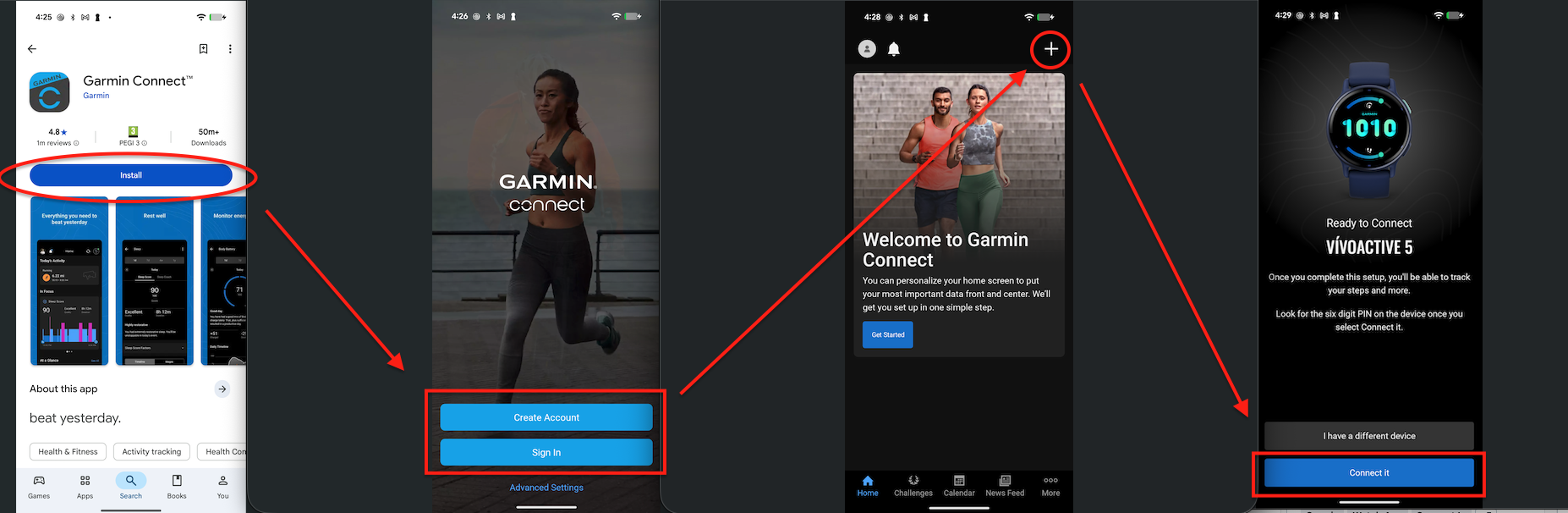
Install Garmin Connect on the participant’s phone and follow Garmin’s own setup to pair the watch. This is standard Garmin setup, not an mEMA step, and if the participant already uses their watch it is already done.
Nothing later in this list will work until the watch is paired here.
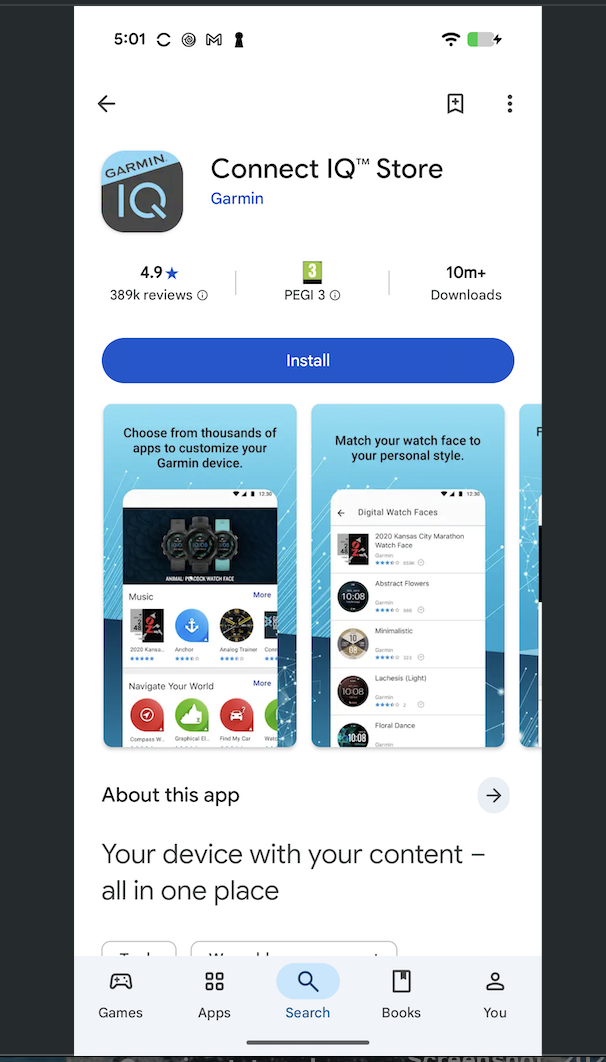
Install the Garmin Connect IQ app
Also free, from the App Store or Google Play. This is Garmin’s app store for watch apps, and it is how the mEMA watch app is delivered. It is separate from Garmin Connect and both are needed.
Set up mEMA on the phone
Set the app up as you would for any study — the participant enters their server code and mobile code on the launch page. If they are already enrolled and using mEMA, this is already done.
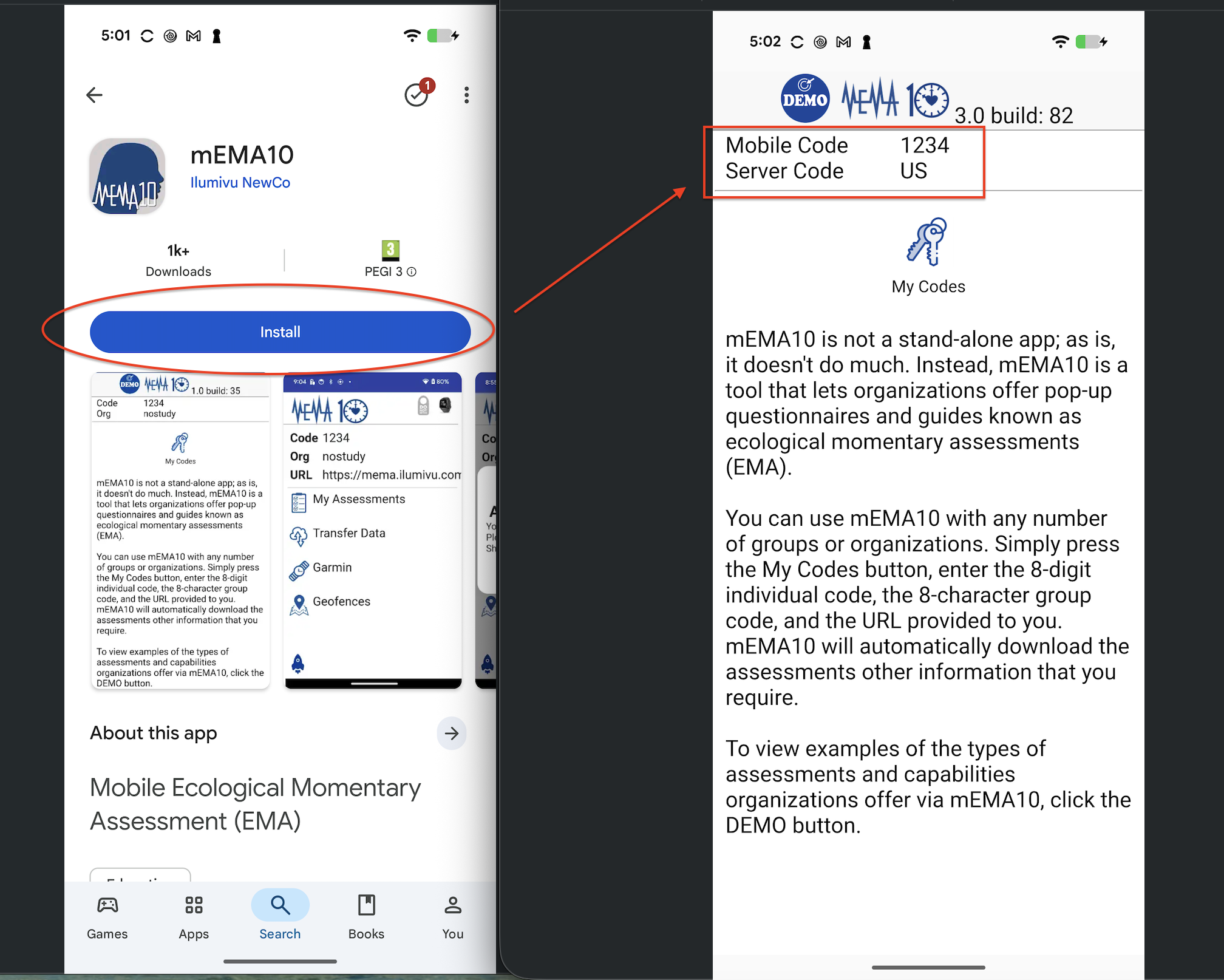
The watch takes its identity from the phone, so there are no codes to enter on the watch and nothing to set up on it.
Open the Watch App screen
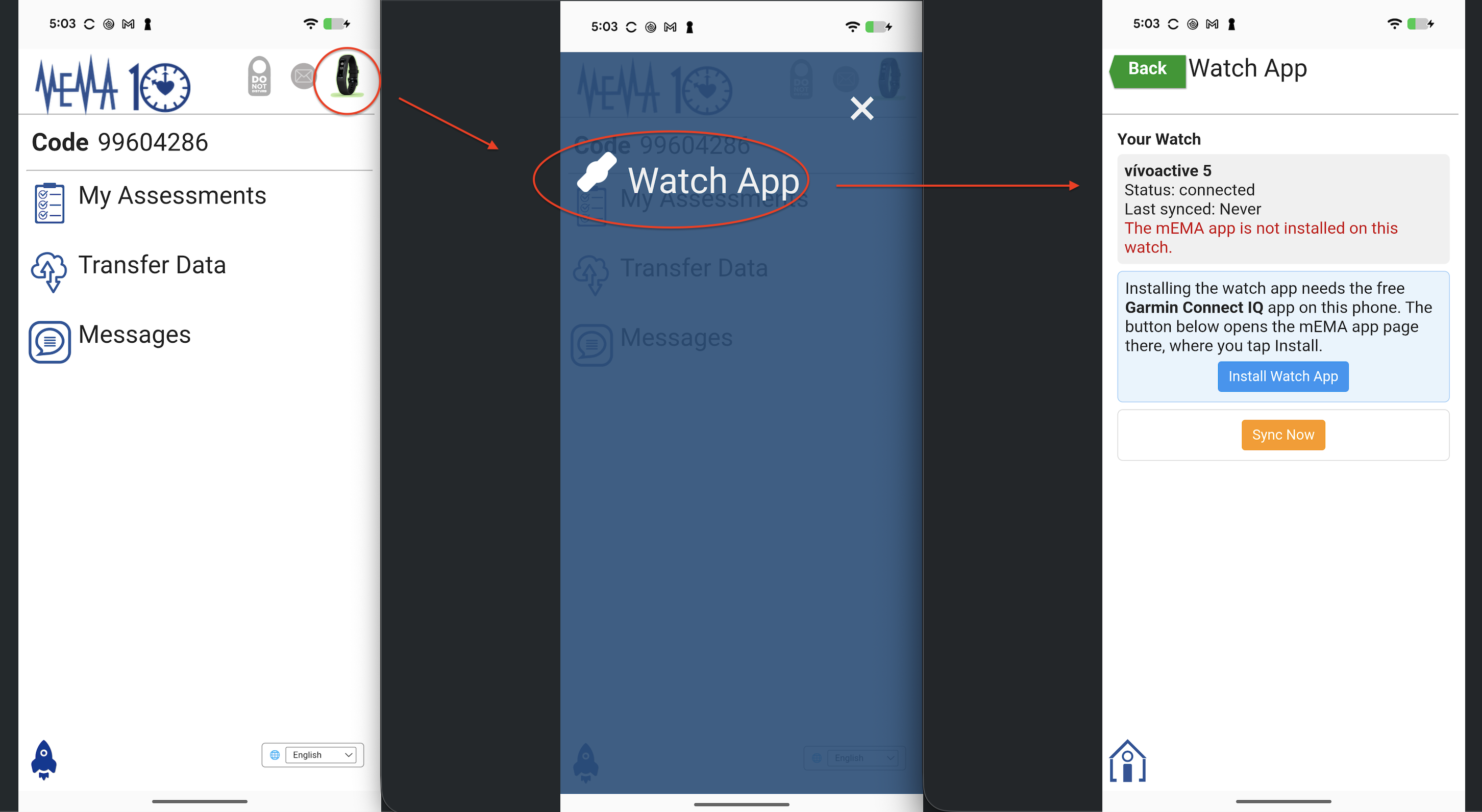
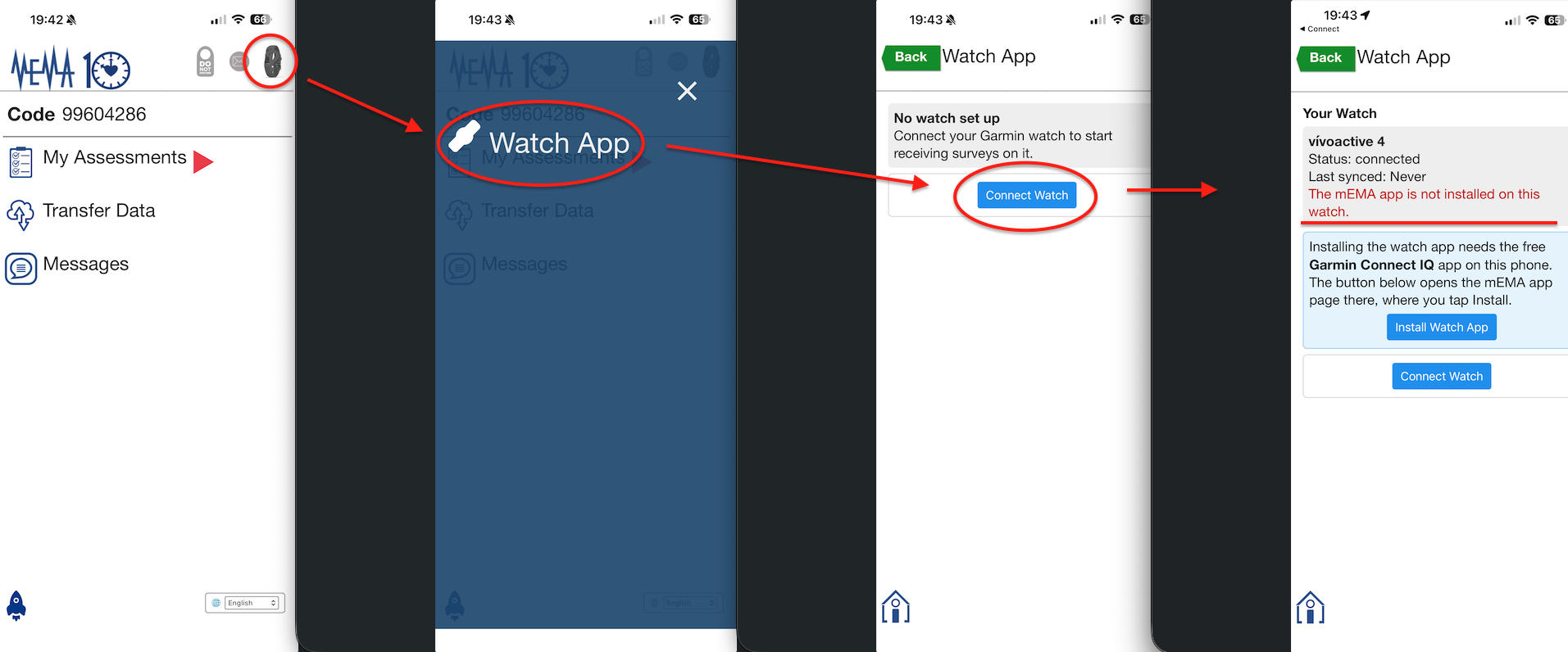
In mEMA, tap the Garmin watch icon in the header, then Watch App.
If the icon is not there, the watch app setting is not on for this study — go back to Requirements and turning the watch app on.
On an iPhone, tap Connect Watch once. This hands you to Garmin Connect to allow mEMA to talk to the watch, then returns you. Android users will not see this button and do not need it.
Read what the screen tells you
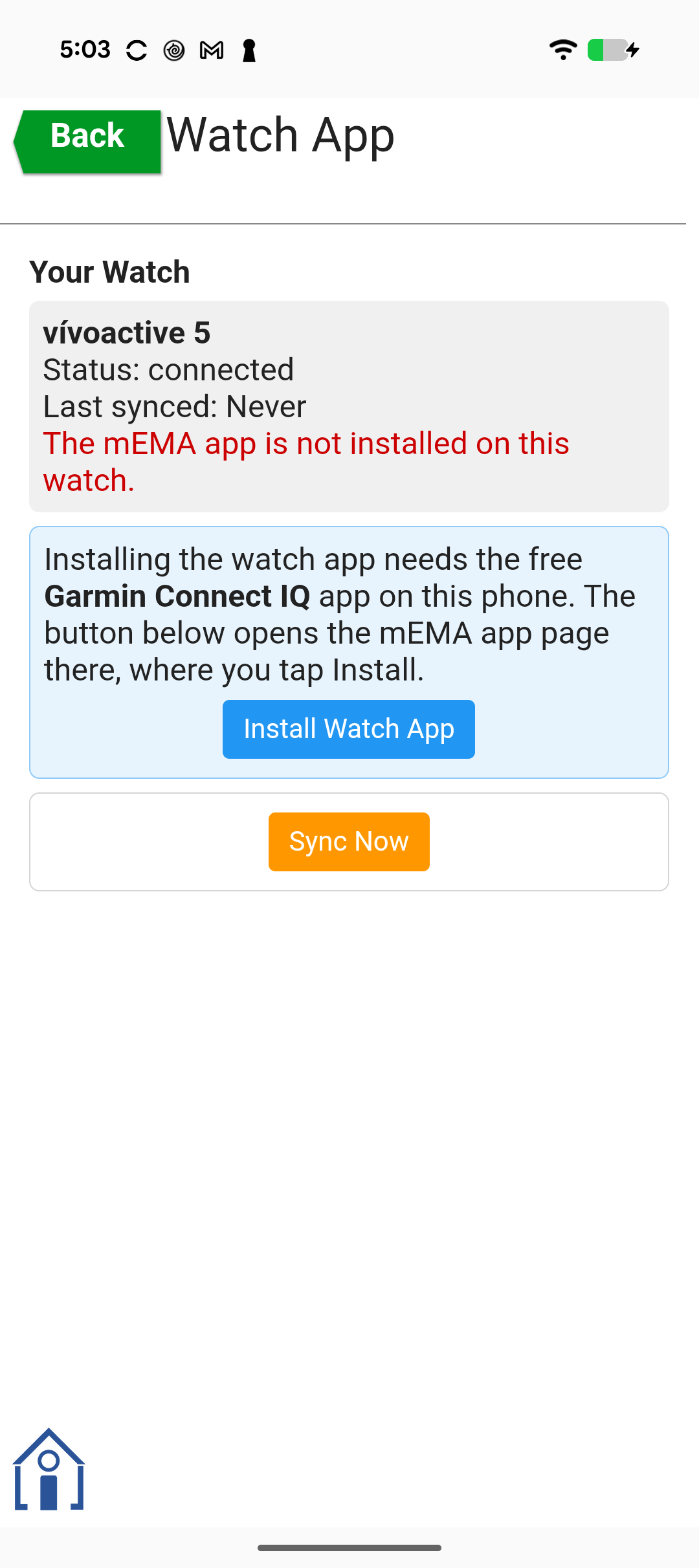
Each watch appears as its own card, showing its name, whether it is connected right now, when it last synced, and either the version of the mEMA watch app it has, or a red line saying the app is not installed.
A brand-new setup will normally say the app is not installed. That is expected.
Install the watch app
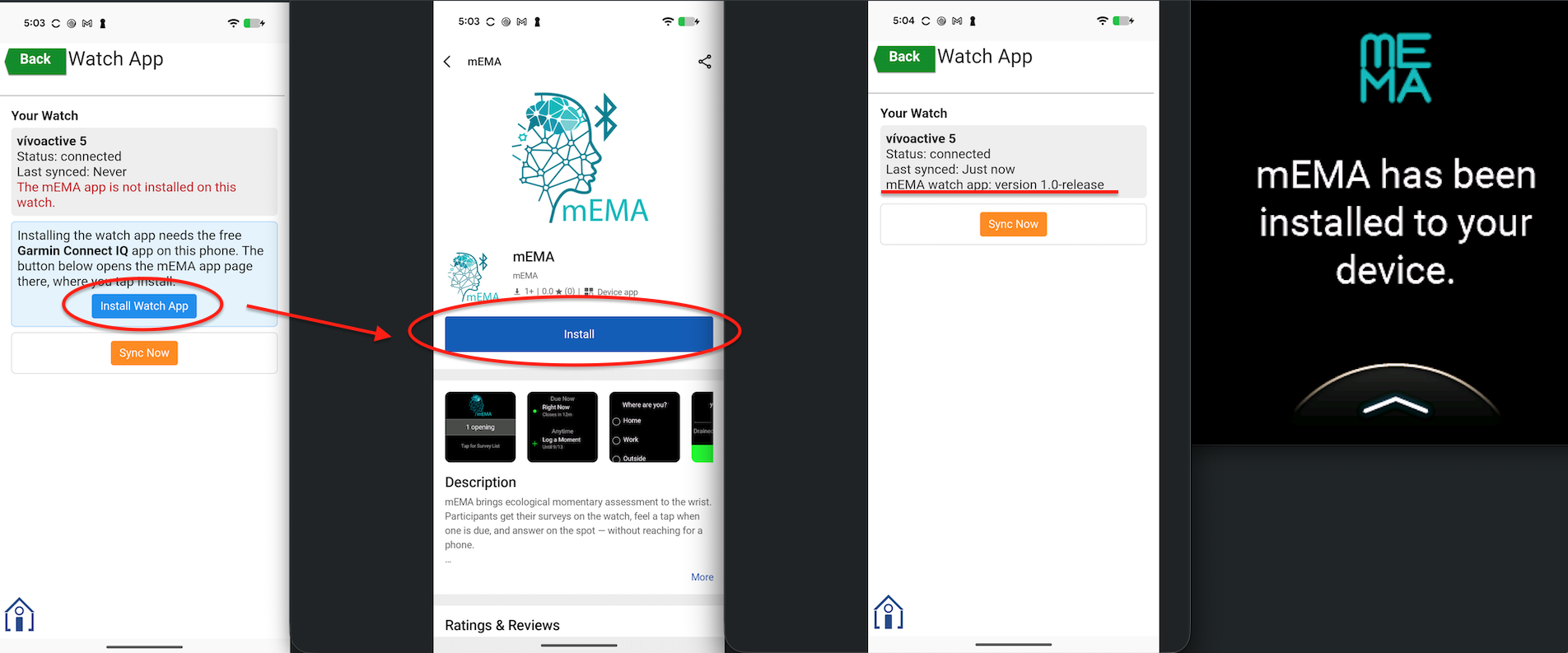
Tap Install Watch App. This leaves mEMA and opens the mEMA page inside the Connect IQ app, where you tap Install. Garmin then sends the app to the watch over Bluetooth, which usually takes a minute or two.
The install finishes on Garmin’s side, so mEMA cannot announce it. Return to the Watch App screen after a couple of minutes; when the watch has the app, the red line is replaced by a version number.
Open mEMA on the watch, once
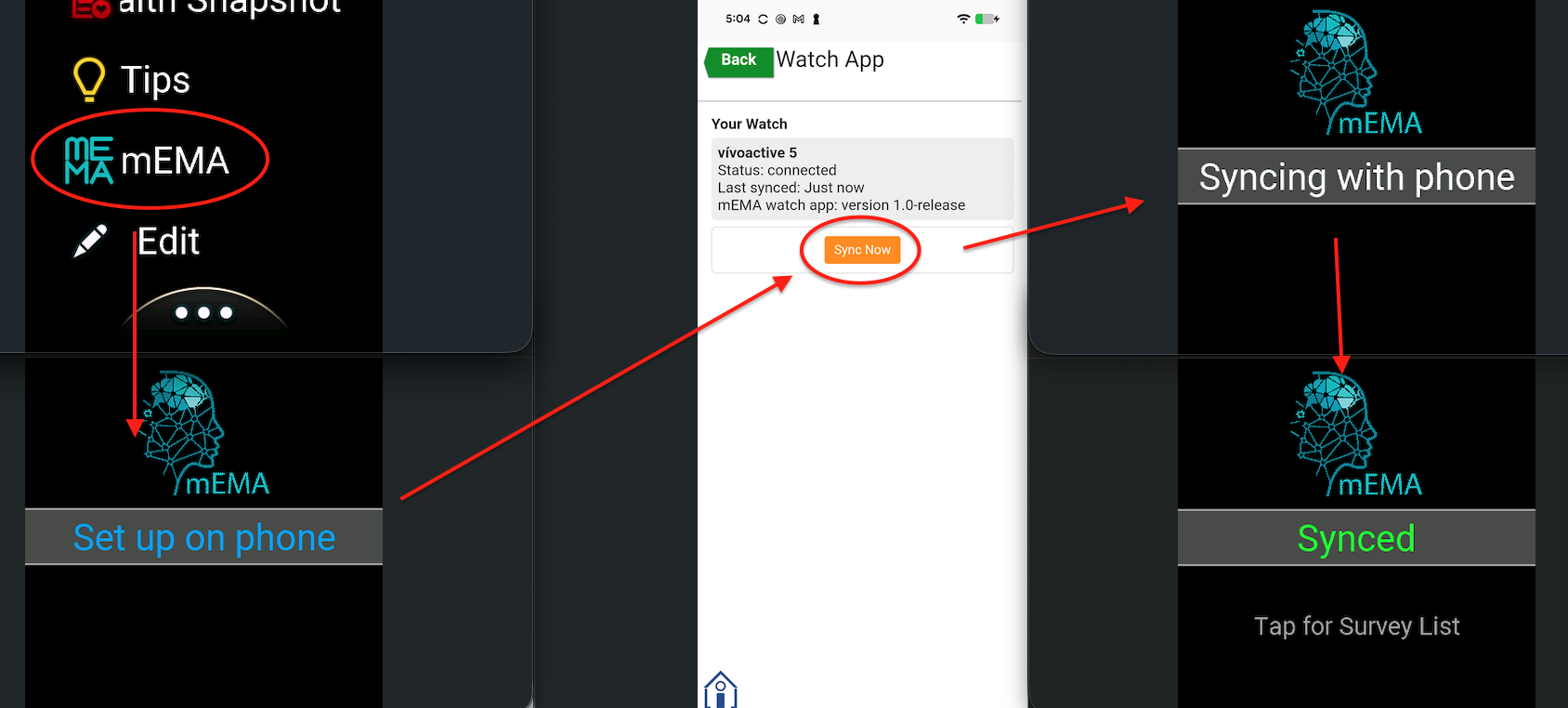
On the watch, open its Connect IQ apps list and launch mEMA. It will say Set up on phone until it has received anything, which is correct at this stage.
Sync
Back on the phone’s Watch App screen, tap Sync Now. The watch shows Syncing with phone, then Synced.
You will not normally need this button again — syncing happens on its own from here. It is here for setup and for reassurance.
Before the participant leaves
Confirm all of these:
- The Watch App screen shows the watch, with a version number for the mEMA watch app.
- Last synced shows a time, not “never”.
- On the watch, tapping the home screen opens My Surveys and the study’s surveys are listed.
- The participant has opened one survey on the watch themselves and answered at least one question, so they have felt how it works.
- If your study relies on manual upload, the participant knows to tap Upload in the phone app — watch answers do not send themselves to you (see Where watch responses go).
Note
“Not connected” is not a fault. A watch spends much of the day out of range of its phone, and the app is built for that: it keeps its surveys, collects answers, and sends them the next time the two are together. The Watch App screen says so on purpose, so participants do not try to fix something that is working.