
Triggering a Follow-Up Assessment
Using a question response to launch another assessment in mEMA
Overview
mEMA lets you attach a trigger to any question in an assessment. When a participant answers that question in a way that matches a condition you define, mEMA sends them a notification for a second assessment after a delay you specify.
The follow-up can be a different assessment or the same one, which makes the feature useful both for branching into a more detailed module and for sampling the same measures again after an event. The notification can also be routed to the participant's support team instead of the participant, so a concerning answer reaches a person rather than launching another survey. Everything is configured on the triggering question itself, so no separate schedule is required.
Use cases
- Event-contingent follow-up – A participant reports a craving, a conflict, a drink, or a stress spike in their daily diary. Thirty minutes later they are prompted with a short assessment capturing what happened next, without the researcher having to anticipate when the event will occur.
- Keeping the core survey short – Ask one screening question in the main assessment and trigger a longer module only for participants whose answer warrants it. Participants who answer below the threshold never see the extra burden.
- Repeated post-event sampling – Because an assessment can trigger itself, a positive response can start a chain of measurements at fixed intervals following the event — useful for tracking recovery, symptom decay, or the aftermath of an intervention.
Before You Start
- Assign the follow-up assessment as OnDemand – The assessment you want the participant to complete as a follow-up must be assigned with the OnDemand schedule type. If it is not, the participant will not be able to enter that survey.
- Know the ID of the follow-up assessment – You will need to enter it by ID, not by name, in Step 5.
Configuring the Trigger
- Go to the Create Surveys page and select the assessment that contains the question you want to act as the trigger.
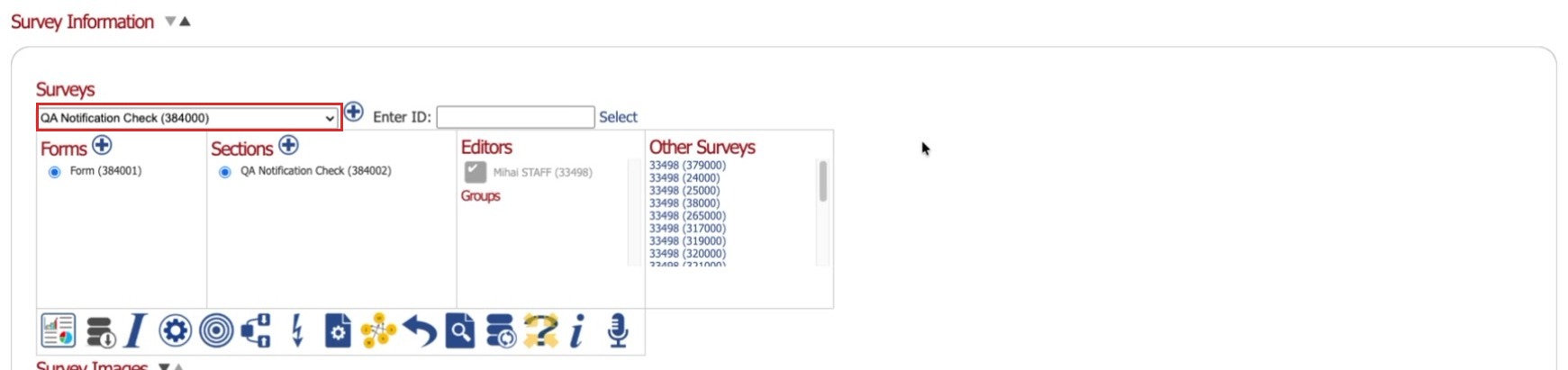
- Click the Pencil icon to edit that question.

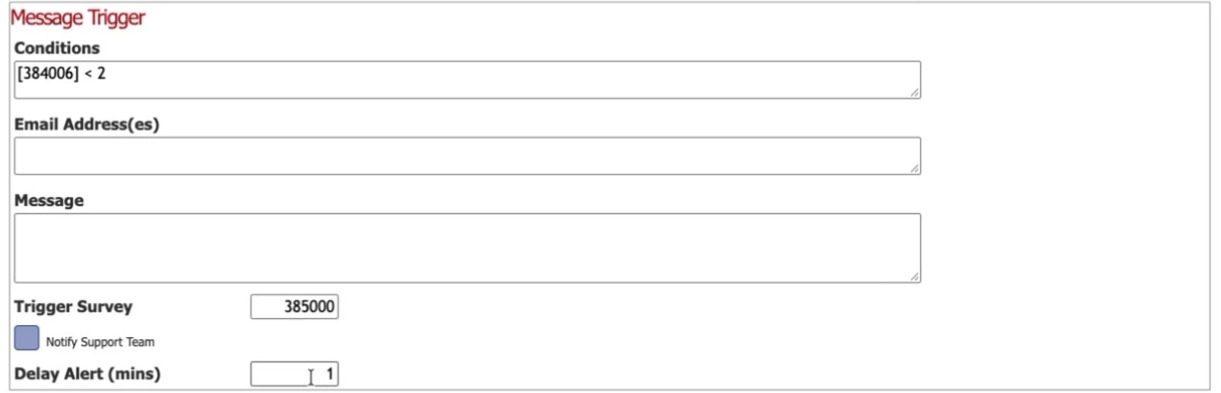
- Check the Triggers Message checkbox, in the row of checkboxes beneath Analytics Code. A Message Trigger section appears above it, containing the fields used in the remaining steps.

- In the Conditions box, set the condition under which the message will be triggered. Conditions here work the same way as dependencies, so the dependencies article is a good reference for the syntax: https://ilumivu.freshdesk.com/a/solutions/articles/9000011668
- In the Trigger Survey field, enter the ID of the assessment you want to be triggered, replacing the default value of -1. This can be the same assessment or a different one. Remember that the assessment must be assigned as OnDemand, or the participant will not be able to enter it.
- Optionally, check Notify Support Team. When this is selected, the trigger goes to the participant's support team instead of the participant — the participant receives nothing. Setting up a support team is covered here: https://ilumivu.freshdesk.com/support/solutions/articles/9000272592-mema10-support-team-feature
- In the Delay Alert (mins) field, enter how long to wait after the participant responds to the question before the notification is sent. The minimum is 1 minute.
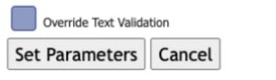
- Click Set Parameters to save the changes.
After the Trigger Is Configured
Once the condition is set on the question, the remaining step is to assign both assessments to the participant.
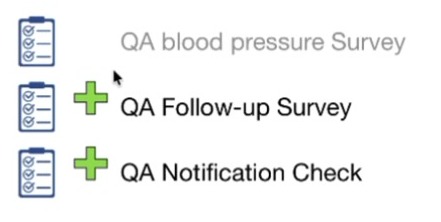
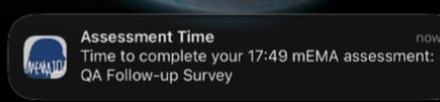
When the condition is met, the participant receives a notification for the follow-up assessment after the delay you set.
If no notification arrives Two configuration mistakes silently stop the trigger, with no error shown at setup. In both cases nothing is sent — to the participant or to the support team. The ID entered in the Trigger Survey field is incorrect, or the triggered survey has not been assigned to the participant. |
How the delay is counted The timer for the follow-up starts once the participant passes the triggering question — not the moment they select an answer. It is not enough for them to respond; they also need to advance to the next question. If you want the follow-up to arrive only after the whole survey is completed, set the condition on the last question of the survey. |